
Purpose:
The purpose is to establish a secure and centralized user authentication system for CamvioWeb by migrating users to Auth0. This process ensures all users benefit from enhanced security through Multi-Factor Authentication (MFA) and enables a unified, single login experience for accessing the CamvioWeb platform.
User Edit Steps:
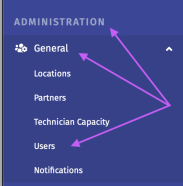
1. Within your CamvioWeb Environment, navigate to Administration > General > Users.
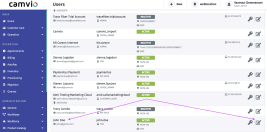
2. Locate the account you are wanting to move to Auth0 & choose Edit.
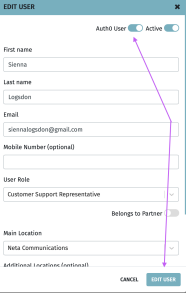
3. Within the Edit User, toggle on Auth0 & hit Edit User.
Post-Edit Steps:
PLEASE NOTE- it is required that users download a Time-Based One Time Password Application (TBOT) for MFA. Authentication application examples include Google Authenticator, Microsoft Authenticator, Fortitoken, Duo, etc. It is the organization's responsibility to identify which authentication application may be used.
Authentication Setup (Auth0) for Existing User Activation:
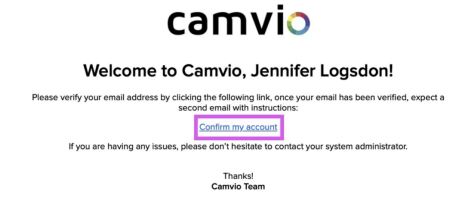
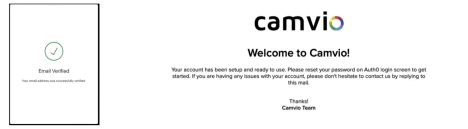
● Once an administrator has toggled on Auth0 for the user's account, the user will receive an email from Camvio Cloud. The email will request the user verify their email address and complete the setup process by selecting “Confirm my account” located within the email body.
 ● Upon verification, the user will receive a pop-up notification confirming
verification of the email, as well as a separate email directing the user to
change their password by logging into Auth0 on the organization’s CamvioWeb instance.
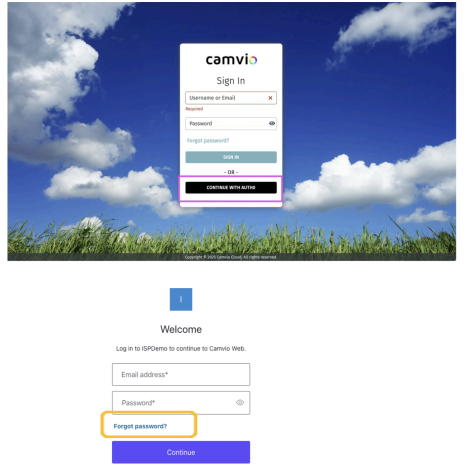
● The user will need to update their password by logging in to the organization's CamvioWeb instance, selecting “Continue with Auth0”, followed by selecting “Forgot Password”.
● A notification will pop up indicating that the user has been sent an email to reset their password. If the user does not get an email, select “Resend email” on the pop-up to send a new one.
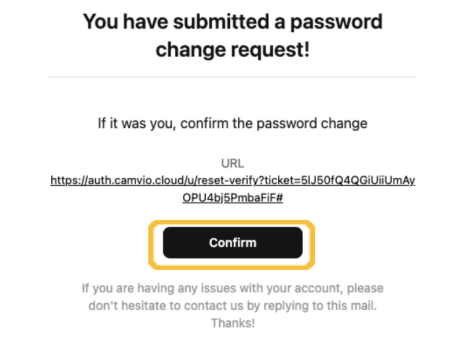
● From your email, you will receive a confirmation that you are wanting to change your password. Select “Confirm” to move forward
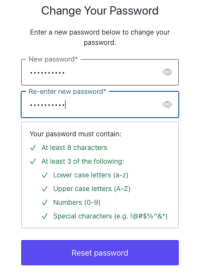
● Enter your new password following the requirements in green. When complete, select the “Reset Password” button below.
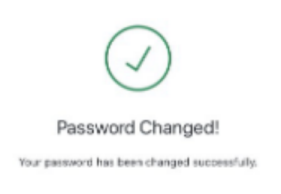
● The user will receive a pop up verifying that the new password has been successfully Changed.
● Navigate back to the organization’s CamvioWeb instance and once again select “Continue with Auth0”. The user will also need to open a Time-Based One Time Password Application (TBOT) (Please contact the organization’s IT department for recommendations). Select “Add a Code” to continue. This will ask for the user to scan and provide a One-Time Code. Initiate the scan from the authentication application from the user’s cell phone. Enter the provided one-time code into CamvioWeb and select continue.
Examples of Authenticator view from cellular device:
1. Re-entry into CamvioWeb
● Upon re-entry into the CamvioWeb instance, users will need to select the “Continue with Auth0” button, followed by their email address and password.
● A new screen will appear and ask the user to verify their identity, once again using their TBOT application. If the user is using a personal device, or a device that is not shared with other users, they may select the ‘remember this device for 30 days’ option. Every thirty days, the user will need to re-verify their identity.
2. Camvio’s stance on Multi-Factor Authentication (MFA)
● Upon re-entry into the CamvioWeb instance, users will need to select the “Continue with Auth0” button, followed by their email address and password.Setting up Multi-Factor Authentication (MFA) is crucial for software users because it adds an extra layer of security to accounts, making them more resistant to unauthorized access.
Here's why MFA is so important:
1. Enhanced Security: Passwords alone are often not enough to protect accounts, as they can be weak, reused, or stolen through phishing or data breaches. MFA requires at least two forms of authentication (e.g., something you know like a password, and something you have like a phone or security key). This significantly increases the security of the account.
2. Protection Against Phishing: Even if an attacker gets hold of your password, they would still need the second factor (like a code sent to your phone or an app). This makes it harder for attackers to access accounts, even with stolen login credentials.
3. Safeguarding Sensitive Information: For many software applications, users access sensitive data (like emails, banking information, personal documents, etc.). MFA ensures that even if hackers gain access to your password, they still can't easily access your private or financial Information.
4. Compliance Requirements: In many industries, MFA is required to meet compliance standards (such as GDPR, HIPAA, or PCI-DSS) to protect personal and sensitive data.
5. Reducing the Risk of Account Takeover: Accounts that are protected with MFA are far less likely to be taken over by hackers, even if they manage to steal login credentials.
6. Peace of Mind: By enabling MFA, users know that they have an additional security layer, which can help them feel more secure when using software and services online.In short, MFA makes it significantly harder for unauthorized users to access your accounts, providing a much-needed safeguard for your personal information, financial data, and other sensitive