
Update an Address from an Open Service Order
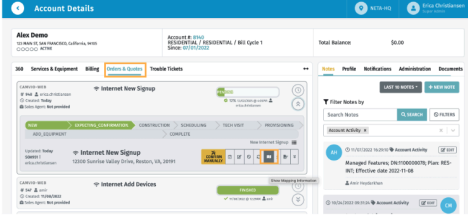
1. Navigate to the customer’s account and open the active (open) service order.
2. Locate the service address section
3. Click the map icon next to the address.
4. Enter the updated address.
5. Validate the new address if applicable.
6. Save or confirm your changes.
Update Serv Address from a Completed SO
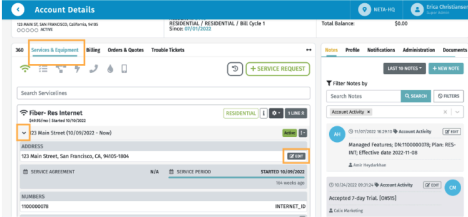
1. Navigate to the customer’s account.
2. Select the Services & Equipment module.
3. Locate the completed service order that needs an address update. 4. Click Edit near the listed service address.
5. Enter and confirm the updated address.
6. Save your changes.
Important Note
Whenever possible, always validate the new address (if the system provides a validation option). This ensures the location aligns with the organization’s GIS data and maintains clean, accurate service records.
2